When storage fills up, deleting the largest visible file may feel like the obvious response. Size alone, however, does not establish a file's importance, where another copy exists, or whether an action will release space on the location that actually needs it. A better start is to measure the problem, choose an action with understood consequences, and review its result before making another change.
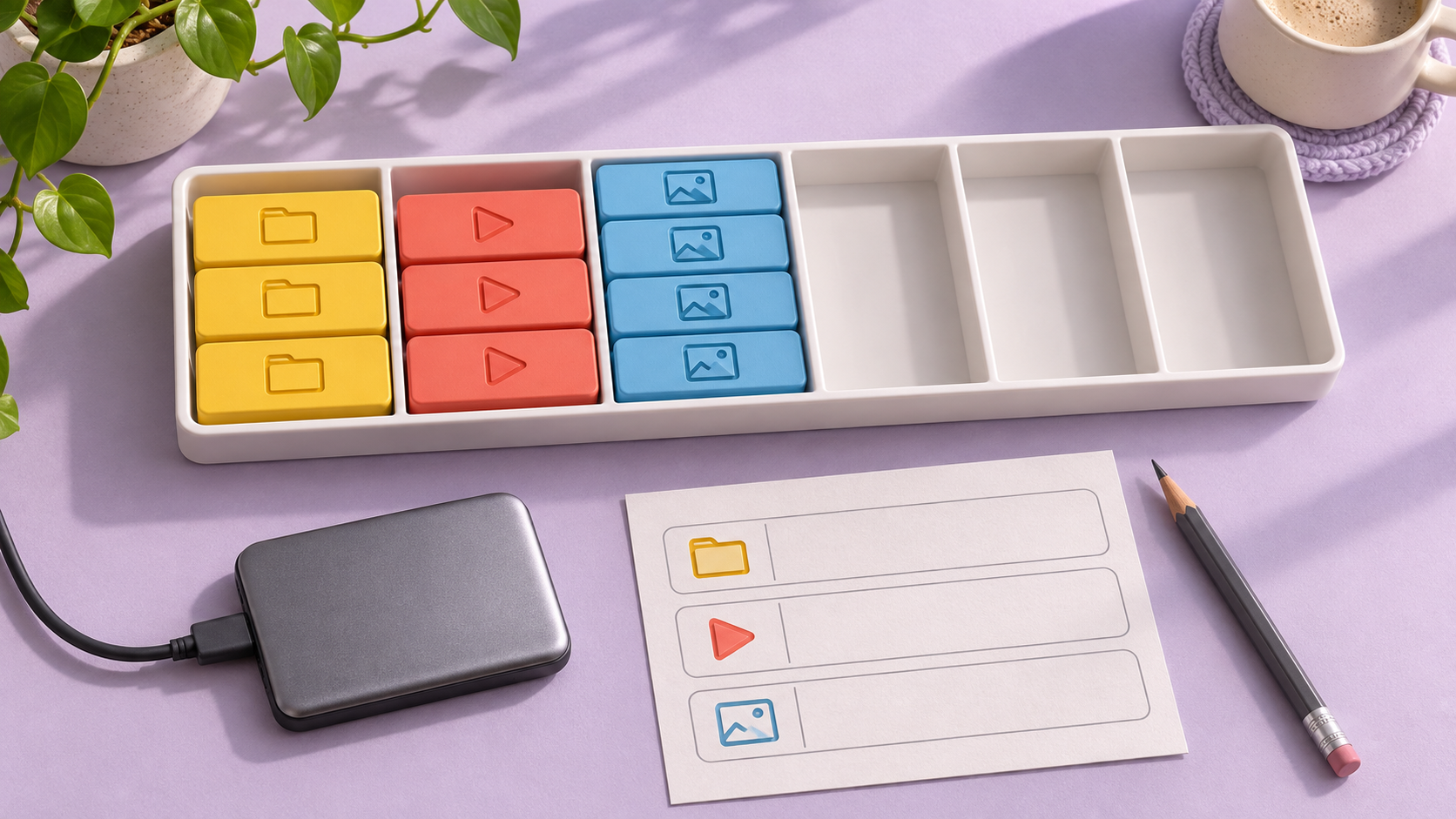
This is a decision-planning guide, not a cleaning tool or an instruction to delete your files. Its figures and examples are original and fictional; no user device was tested. The generated illustration represents file categories and empty capacity, not real disk readings. This AI-assisted article has not received independent human editorial review.
Identify the location that needs space
Write down the device and storage location displaying the warning, then record used and available capacity as shown by its system tool. Do not confuse the internal drive, an external drive and a cloud account's allowance. One may have spare space while your intended operation needs another.
Keep the displayed units and do not combine measurements on different scales without understanding them. Record the time too: a download between readings can alter the outcome. This worksheet compares a defined situation with itself, rather than judging every device by a coloured bar or an isolated number.
Turn a warning into a calculable need
In a teaching example using consistent units, capacity is 80 GB and usage is 72 GB, leaving 80 − 72 = 8 GB available. We plan to add 6 GB of files and, for this example only, choose to retain 4 GB afterwards. Before adding the files we therefore need 6 + 4 = 10 GB, a shortfall of 10 − 8 = 2 GB.
The 4 GB figure is not a general system recommendation or update requirement; it is an arithmetic assumption. Actual application and update requirements come from their providers and may include additional working space. Having space equal to a file's size does not itself prove that installation or processing will succeed.
Understand categories before acting on them
Review the usage breakdown in the official tool. Choose a category whose contents you understand and are authorised to manage, then inspect specific items rather than treating the category name as blanket removal permission. “Downloads” can include both an unwanted file and the only copy of an important document.
Do not delete an unfamiliar folder simply because it is large, or treat system files and shared work as spare personal capacity. For a managed device, collect the description and readings and consult the responsible team. This guide does not suggest bypassing policy or using permissions you do not possess.
Separate copying from releasing capacity
Copying a file to another drive while retaining the original releases no space at the source in our model. Moving it between folders on the same storage location likewise does not reduce its content. Organisation may improve, but organisation and capacity release are different outcomes.
If your decision involves moving important material elsewhere, establish that the copy is complete and the required content opens before considering the original. A filename appearing at the destination does not establish that every part is intact. This worksheet is neither a replacement for protecting your files nor a promise that later deletion can be undone.
| Fictional action | Assumed source effect | What to understand |
|---|---|---|
| Copy 6 GB externally, retaining original | 0 GB released | Copying alone does not remove the original |
| Move folder within the same storage location | 0 GB released in this model | Organisation does not reduce content |
| Understood action releasing 3 GB after item review | 3 GB theoretically | Measure the actual effect |
| Delete an unknown category because it is large | Not approved in this plan | Contents and effects are unclear |
Read what a button does, not just its short label
Official Android help distinguishes clearing cache from clearing application data. Read your device's explanation before acting; similar wording does not make the outcomes identical.
Write a simple description of the expected result before confirming: will a local copy, application data or account-owned items change? If you cannot explain it, stop at reading. Do not use a large space estimate to compensate for not understanding what you would lose.
Review automation settings separately
Microsoft's Storage Sense reference explains cleanup settings and system-drive scope. Read the choices relevant to your version rather than assuming another device's configuration describes yours.
Distinguish an action now from a rule that repeats later. Before enabling a rule, understand its inclusions, exclusions and timing. Do not include necessary documents in a policy simply because you have not opened their folder recently. We recommend no particular automatic deletion setting or default change here.
Take one understood step and measure again
Choose one action after understanding it and reviewing its items, rather than making several unrecorded changes. In our example, actually releasing 3 GB increases availability from 8 to 11 GB. Adding the planned 6 GB then leaves 5 GB, which is 1 GB above the example's assumed 4 GB reserve.
But if the reading becomes 10.6 rather than 11, measured gain is 10.6 − 8 = 2.6 GB and the estimate difference is 3 − 2.6 = 0.4 GB. Record that difference and investigate changes during the interval and the measurement method, rather than inventing a definite cause. Do not present the estimate as an observed outcome.
Avoid counting the same files twice
If a 10 GB parent folder contains a 3 GB subfolder, do not add 10 + 3 and announce 13 GB. The three are already included in the ten in this example. Use either the overall total or nonoverlapping component items when calculating what you intend to review.
Similar names alone also do not establish removable duplication. Content, version or purpose may differ. This guide does not ask you to run automated duplicate deletion; the decision requires understanding the files, not merely noticing similar-looking names.
Track growth instead of cleaning without a goal
Keep two or more readings for the same location in the same units, noting large intervening tasks. If another fictional example shows 12 GB of growth over four weeks, that period's average is 12 ÷ 4 = 3 GB per week. This describes the past; it does not promise the same growth next week.
Use the record to ask what repeats: do you import a new project weekly, retain copies needing review, or genuinely have a growing workload? A different capacity plan may be more appropriate than endlessly hunting for one small file. That does not imply buying a particular product or subscription; establish the need before comparing options.
Checklist before accepting the result
- Identify the correct device and storage location.
- Record the reading, unit and time.
- Understand the category, its items and your authority to manage them.
- Separate copying and organisation from capacity release.
- Do not approve an unclear removal or put secrets in a shared record.
- Perform one understood step and compare the subsequent reading.
- Separate expected arithmetic, measured results and official requirements.
If the result remains unclear, retain the details support needs without unnecessary private filenames or sensitive data. The aim is to understand why capacity changed, not obtain a bigger number by any means.
Sources and example limits
Both references were read on 2 November 2026. Attributions are brief; the table, measurement workflow and calculations are original teaching material. There are no deletion commands, device tests or speed guarantees. Capacity, need and change figures are fictional and do not replace system requirements or the procedures of an organisation managing the device.