An empty inbox does not necessarily mean the work is finished, and a crowded one does not mean every message matters. Useful organization makes the next step clear: what needs your reply, what is waiting on someone else, and what should remain available for reference? The goal is to keep commitments visible, not chase a perfect number on screen.
This guide proposes a simple system for personal email or an account you are authorized to manage, with a limited trial before automated rules. It does not prescribe bulk deletion, forwarding organizational mail to an outside account, or changing retention policy. Examples are hypothetical; no reader's mailbox was opened and no message was sent on their behalf.
Define the states before creating folders
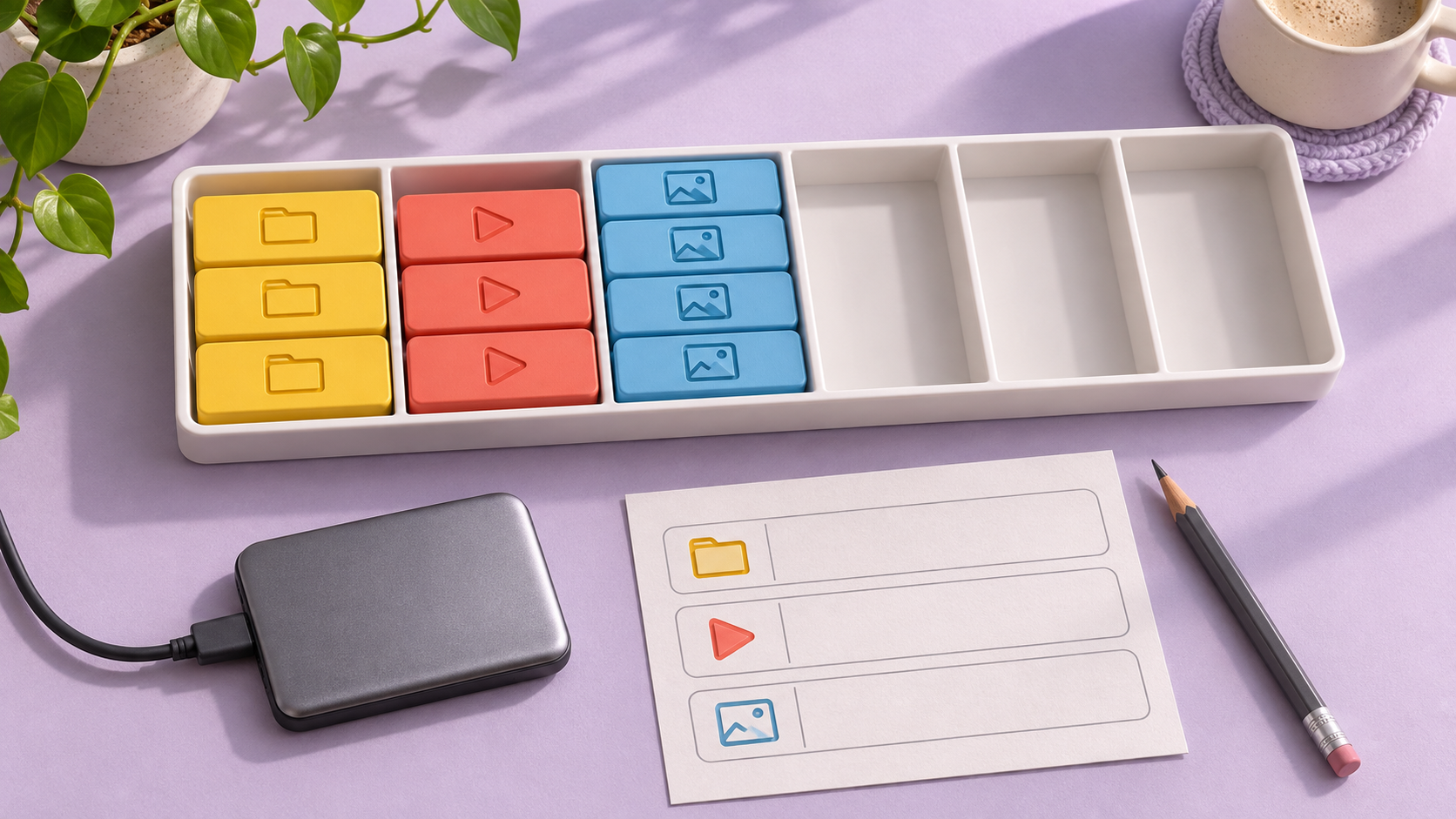
Start with three practical states: “action from me,” “waiting for a reply,” and “reference.” Your work may need another category, but do not create dozens before knowing what each will do. A state should answer a question rather than add an unexplained color.
A message requiring you to supply information differs from one you have sent and are awaiting an answer to. If both are simply “important,” you must reread everything to discover the next step. Where needed, name the action, such as “confirm the date after checking the calendar,” rather than writing only “follow up.”
Do not use unread status as your only task list. A message can be read while its work remains unfinished, and an unread notification may require no action. Separate reading status from responsibility for completing work.
Understand the tools in your service
Gmail's organizing documentation describes labels, filters, stars, snoozing, and archiving, including multiple labels on a message. Do not assume a label behaves like a folder in every program or that phone and browser commands have identical names.
Outlook's inbox documentation describes folders, categories, rules, follow-up flags, and archiving. Use these examples to select tools available in your version, not to copy a different interface or assume every account includes the same features.
Give each chosen tool a clear purpose. If a flag means “action from me,” avoid also using it merely to mark messages you liked. For a shared account, agree on meanings and identify who may change rules.
Begin with a small recent sample
Choose messages whose context you know instead of applying a new system to years of mail immediately. Read the relevant content and identify the action, timing, and responsible person. Do not open a suspicious attachment merely to complete classification.
In a fictional example, you receive an invitation requiring confirmation, a report for future reference, and a conversation awaiting information from a colleague. The first requires your decision, the second is reference material, and the third needs a waiting state with an appropriate review time. Categories can vary, but the reason should be explainable.
After sorting the sample, ask whether you can see your commitments without opening every message again. If states remain ambiguous, adjust their definitions before expanding. A large number of sorted messages is not useful if the associated tasks have become less clear.
Connect messages to actions and dates where needed
If work happens outside email, record it in your usual task system with an appropriate reference to the message. Do not copy sensitive material into an unapproved tool. A flag or reminder within the mail service may be enough if it serves the purpose without unnecessary duplication.
Distinguish a real deadline stated in the request from a review date you choose yourself. Do not invent a deadline because every row seems to need one. “No stated deadline; review on this date” makes the meaning clear to collaborators.
Update the state when the action is completed. Do not leave finished work under “action from me,” and do not mark it done merely because you opened the message. If approval or a response is still needed, keep that dependency visible.
A small follow-up table
| Example message | State | Next action | Reason for the date |
|---|---|---|---|
| Invitation requiring confirmation | Action from me | Check availability and reply | Deadline stated in the invitation |
| Question already sent | Waiting for a reply | Check whether an answer has arrived | A review date you choose and identify |
| Report for later use | Reference | Retain under an understandable category | No invented deadline needed |
| Unclear request | Needs clarification | Formulate a specific question | Depends on the work's importance and context |
This is a template, not a real message list. Avoid unnecessary private text and email addresses in the record. Keep enough information to identify the task while respecting organizational rules for work accounts.
Test search before creating automatic rules
Choose a narrow condition, such as a known sender and recognizable message type, and inspect search results first. Look for messages that should not be included. A general subject word may capture several kinds of mail; matching one example does not prove a rule will always be precise.
If a filter is useful, begin with an observable action such as a clear label rather than immediately deleting or hiding messages. Review a limited scope and understand whether it applies only to new mail or also to existing messages. Do not run a rule across the whole archive without reading its effect.
Record the rule's name, purpose, matching conditions, and how to disable it. If important messages are captured incorrectly, stop and revise the condition before adding another rule to counteract it. A small understandable set is easier to maintain than a chain of exceptions with an unclear order.
Separate archiving from deletion
When a message no longer belongs in the inbox but may be needed later, learn how your service archives it and how to retrieve it. Try that on a known, non-sensitive message. Disappearance from the current screen proves neither deletion nor indefinite retention.
Deletion is a separate decision and may involve organizational policy or documentation needs. This article gives no legal retention period and does not recommend erasing official correspondence. If you do not know what must be kept, ask the responsible person instead of turning tidying into information loss.
Emptying trash or deleting every message from a sender should not be the default way to reduce visual clutter. The same sender may deliver routine notices and material you need. Review content and scope before an action you would later wish to undo.
Reduce noise without losing important signals
Review known subscriptions you no longer use through account settings or the official source. Do not follow a suspicious unsubscribe link simply because it promises less email. Distinguish marketing mail from account alerts or appointment information you rely on.
If you adjust notifications, do so around your responsibilities. Someone handling urgent requests may need a different arrangement from a lightly used personal account. This guide imposes neither disabling every alert nor checking email a fixed number of times.
For shared mailboxes
Agree who responds, how ownership of a message is shown, and how work transfers during an absence. Two people should not send conflicting answers because responsibility was invisible. Use authorized account tools rather than sharing a password among everyone.
Before changing a team-wide rule, explain its scope and test through the agreed process. Do not forward messages to personal email without permission for convenience. Good organization preserves accountability and access boundaries alongside findability.
Review what the system actually misses
After using it for a while, ask whether a deadline was missed because a message disappeared, finished work remained in the list, or categories multiplied beyond recall. These observations guide adjustments; they do not require rebuilding the system every week.
Keep a short description of key definitions and rules. The goal is to see what needs your decision, what awaits someone else, and where reference material can be found. Reaching zero inbox messages is not a prerequisite.
Sources and transparency
The linked Google and Microsoft documentation was read on 1 November 2026. States, the table, and the trial method are original hypothetical examples. The generated illustration uses symbolic envelopes and contains no real correspondence. This article was prepared with AI assistance and has not received independent human editorial review.