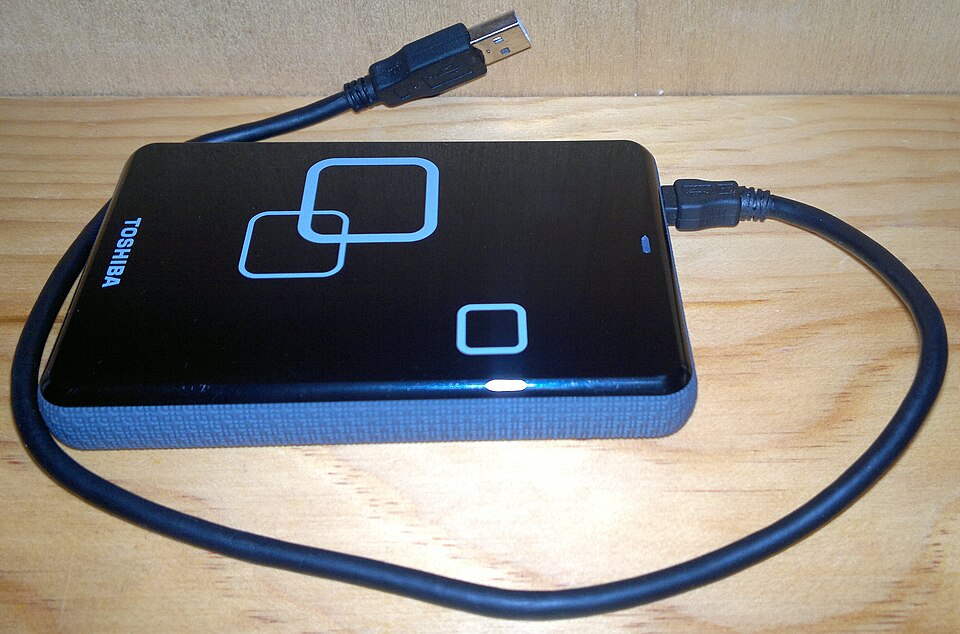
The useful backup question is not simply whether it is enabled, but which file you could restore, from where and with which account. Cloud storage, an external disk and a photo application can coexist while leaving you uncertain about a needed document. This guide organises the decision around recovery: identify data, understand tool coverage and conduct a limited test without putting originals at risk. Official Windows, Apple and Google documentation illustrates different paths, rather than assuming one service’s features apply to another. Nothing here requires erasing a device or promises recovery of permanently deleted material.
Check what your phone backup actually includes
Google explains that Android backup covers categories of device data but does not guarantee recovery of every application’s data and settings. Restoration varies by phone and system version, and a backup from a newer Android version cannot simply be restored to an older one. Inspect the listed categories and applications rather than stopping at an enabled switch. Before replacing a phone, check the new device’s requirements and important apps’ instructions. Photos, messages and work files may follow different paths; identify those paths before erasing or handing over the old device. Google Help
Computer and cloud backups have different coverage
Apple documents different coverage for computer and iCloud backups. Some information already stored in cloud services is excluded from a device backup, while certain computer-backup data requires encryption. Choose a method after reading its exclusions, not simply by comparing the resulting file sizes. Check any separate mail or photo service as well. Having a phone backup does not demonstrate that every associated library or document is inside that backup. Record how each important category will be reached after migration, especially before the original device is no longer available. Apple Support
Synced information may sit outside the daily backup
Apple explains that information synchronised through services such as iCloud Photos and Messages in iCloud is not duplicated in the same way inside the daily device backup. App information using iCloud Drive may reside in that service instead. When something is missing, establish whether you should inspect the device backup or the service holding the data. An absent backup category does not necessarily mean lost information, and an available cloud account does not establish complete coverage. Verify the relevant settings, account and content before changing backup configuration or deleting older copies. Apple Support
System recovery is not the same as personal-file backup
Microsoft distinguishes tools for protecting personal files from tools for repairing or restoring Windows. A recovery drive does not include personal files, while System Restore concerns system files, settings and installed programs. Creating recovery media therefore does not justify marking personal documents as backed up. Record the tool and its purpose: recovering the system, retrieving a document or transferring settings. This distinction helps during an incident. For a missing photo or work file, start with its storage and backup locations rather than invoking a broad recovery operation without understanding its effect. Microsoft Support
Restore a file to a different location when testing
Windows File History can retain versions on an external drive or network location. Microsoft warns that restoring over a current file replaces it and documents restoring to another location to avoid overwriting. Keep a test limited: select a non-sensitive file and inspect the earlier version before choosing replacement. Do not assume every folder is covered merely because it exists on the computer; check the protected libraries and folders. Preserve the current file while assessing the result, particularly when recovering older content from a document that still receives new edits. Microsoft Support
Cloud rollback has conditions and consequences
Microsoft’s OneDrive rollback feature has subscription and time-window conditions. Its documentation explains that items created after the selected restore point move to the recycle bin, and that permanently deleted recycle-bin files cannot be recovered. Distinguish retrieving one item from reversing changes across the account. Before a broad rollback, identify both the problem and useful work created afterwards, and check current terms. A cloud feature is not a universal undo button for incidents of any age: coverage, subscription and deletion state all affect the answer. Microsoft Support
Prepare the backup disk before accepting an erase prompt
Apple’s Time Machine setup instructions note that preparing external storage may involve an erase prompt. Encryption also requires a password that will be needed for recovery. Do not select a disk holding the only copy of important files and automatically accept every prompt. Review its identity, contents and intended use, and preserve recovery information safely. After setup, inspect backup status and the latest completed backup rather than treating a connected cable as proof of success. You may keep working during backup, but completion still needs to be confirmed before relying on it. Apple Support
Choose the intended file and backup date
Time Machine’s instructions describe browsing backups and choosing the item to restore, with restored items returning to their original location. A test therefore requires knowing what exists there now. Do not recover an entire folder simply because one file is affected, or select the first visible date without inspecting the contents. Check the item and required version, allowing loading or validation to finish where indicated. For frequently edited documents, note why the chosen version is appropriate. Success means recovering the intended state, not merely finding that the restore button responds. Apple Support
Check the photo account, storage and supported files
Google Photos backs up to a selected account, with storage shared across Google products and requirements for file sizes and formats. Seeing an image in a gallery is not, by itself, proof that upload to the intended account has completed. Check the backup account and status, then inspect recent and older samples through the documented access method. If a particular file fails, review its requirements instead of deleting the original as a troubleshooting step. Keep the original until you establish where a usable copy exists, and avoid indiscriminate deletion to resolve storage pressure. Google Help
Understand where deletion applies before cleaning up
Google Photos explains that deletion in the app can remove items from the device and other devices with backup enabled, and that permanently deleted content cannot be restored through the service. It also distinguishes archiving from deletion. Read the action’s description instead of assuming it affects only the screen in front of you. Hiding an image or freeing device space is different from removing it from the account. Find the instructions matching your goal, and do not test an unfamiliar operation on irreplaceable family photographs or an entire library at once. Google Help
Encryption adds protection and a recovery requirement
Apple explains that an encrypted local backup can include information omitted from an unencrypted one, and requires its password for use. It documents checking completion, the lock indicator and backup timestamp. Do not simply enable encryption and forget how you would obtain the password later. Record that encryption is used and where recovery information is kept without placing the secret beside a widely accessible file. When changing computers, verify the documented route to the required backup. Encryption alone does not answer whether coverage is complete or recovery is possible in your circumstances. Apple Support
Inventory what you do not want to lose
This is our suggested planning worksheet. List the categories that matter: family photographs, study documents, work files, contacts or projects held inside particular applications. For each, record the original location, backup method, account and official recovery instructions. Do not put passwords in the worksheet. Ask whether you have established that the category is covered or merely inferred it from a general enabled setting. Mark unknowns as “not verified”. That is useful information: it turns uncertainty into a task instead of concealing it behind the reassuring assumption that everything must be protected.
Design a small, reversible test
Choose a non-sensitive test file with recognisable content and place it within the scope you intend to check. Wait for the tool to report completion, then follow its instructions to locate and open the copy. Do not delete the original to prove success. Where recovery to another location is supported, choose that location carefully so the result can be compared with the original. Check the name, content and intended version. Record the result, date and tool, rather than relying on a success screenshot that does not identify the data covered. The test establishes only what you tested; it does not prove complete device coverage.
Classify the problem before responding
A file missing from a folder differs from a computer that will not start; a lost phone differs from inability to access a cloud account. Before following instructions, describe the problem in a sentence and identify what remains accessible. If the device works and one document is missing, begin with that document’s storage and versions rather than changing the entire system. If account access is the problem, account-recovery instructions become essential. This is a suggested triage method, not remote diagnosis. Pause before approving an operation whose effect you do not understand, and seek official help without sending private files or credentials.
Before replacing a device
Use the inventory to check categories individually on the replacement device or the service you will rely on. Seeing some photographs does not demonstrate that documents transferred, and a successful sign-in does not establish that every application’s data is present. Retain the old device and existing copies while you still need them for verification, rather than rushing to erase or sell it. Record exceptions, including applications that require their own process, and follow their instructions. The handover then rests on things you checked instead of the assumption that a broad transfer operation must have done everything you needed.
Maintain the plan as circumstances change
Revisit it when adding an important folder or changing a phone, account or storage device. Consider who could follow the recovery procedure if your usual device were unavailable, while keeping secrets private. The worksheet need not be highly technical: it should reveal what is covered, what has not been tested and what requires a decision. This cannot guarantee recovery from every incident. It makes the boundaries of your knowledge visible and avoids confusing possession of a backup tool with knowing how to use it when an actual problem occurs.
Scope and references
Service terms and interfaces change, so technical explanations link to original documentation rather than fixing prices, retention periods or storage allowances that may change. Consult the relevant source before deletion or broad restoration, and do not assume similarly named buttons in different applications behave alike. The examples and suggested plan are neither laboratory testing nor certification that your existing copies are sound. The intended result is specific: a copy with known contents, a recovery route with understood limits and a recorded test that does not place original data at risk.