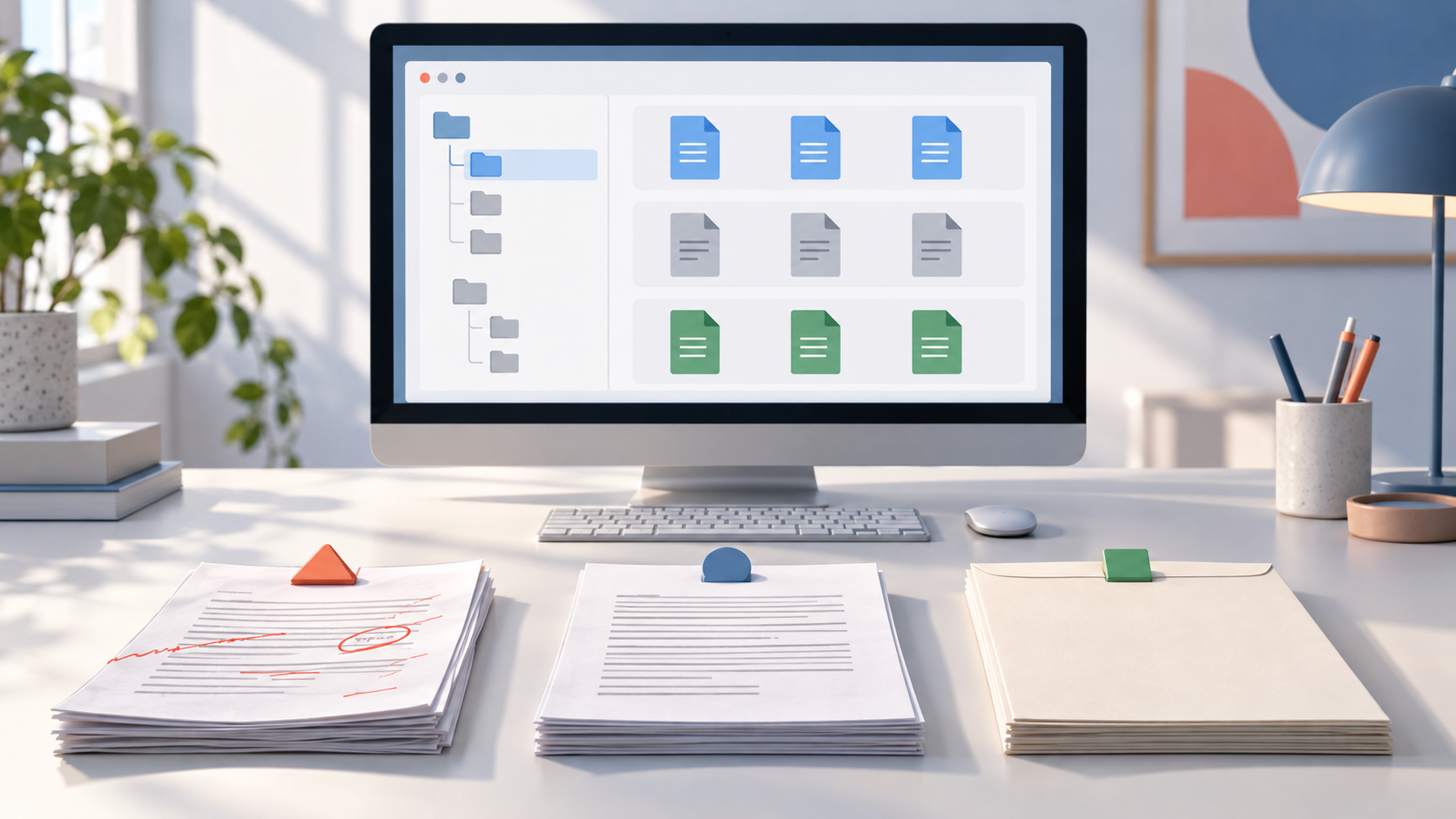
If you have files called “final,” “new final,” and “final after changes,” the problem is more than desktop appearance. You need to know which version is current, which was sent, and where its supporting material lives. Useful organization answers those questions without opening every document or depending on its owner's memory.
This guide focuses on personal or shared document projects you are authorized to manage. It develops a simple structure, naming and version rules, and an intake process for new files. It does not prescribe bulk deletion, moving system folders, or changing an organization's retention policy.
Define the unit of work
Start with one project, such as preparing an activity guide or arranging course documents, rather than rebuilding your entire digital life in one sitting. State the outcome: find the current version, reach the sources, and identify what has already been delivered.
Consider how you remember work: project, client, course, or period. Choose a primary entry point that suits you and authorized collaborators. If everyone thinks differently, agree on one shared structure rather than creating competing parallel copies.
Separate personal material from work documents governed by another organization. Do not move organizational files into personal storage simply because it is easier to arrange. If retention or sharing rules are unclear, record the question and consult the responsible person before reorganizing.
Know the actual location behind shortcuts
Microsoft's File Explorer documentation describes search, file management, and Quick access. A convenient entry helps you reach a folder, but you still need to know its actual location and account.
Record where the working copy lives: local folder, shared storage, or cloud service. If two locations contain the same filename, do not automatically choose the newer date; copying or downloading may affect the displayed context. Inspect the relevant contents within your permissions and establish the relationship.
Do not relocate files used by applications or shared links before understanding the consequences. A project move may require link or configuration changes. Try a small scope and record old and new locations. Moving system or application folders is not a desktop-tidying technique.
Create a short structure that explains the workflow
For a fictional activity-guide project, start with received source material, work in progress, delivered outputs, and a brief explanation of the structure. This is a suggestion for the example, not a mandatory arrangement for every project.
Add a level only if it answers a useful question. If a daily file sits six folders deep, ask whether each level is necessary. Conversely, one folder containing everything without clear names may be difficult to search. Test the balance on your small project.
Define what belongs in each category. Here, “outputs” means material actually delivered, not every polished-looking draft. “Sources” means received reference material, not edited copies that no longer match it. Clear definitions keep attractive folder names from becoming unexplained containers.
Agree on informative names
University of Auckland guidance recommends concise, descriptive, consistent naming, with dates or versions where useful and documentation of the scheme. We use those general principles without transplanting an entire research system into every reader's work.
A hypothetical name could be “activity-guide_draft_v01.docx,” followed by “activity-guide_review_v02.docx.” If a date is useful, choose a consistent format such as 2026-11-01 and explain whether it denotes creation or delivery. Do not present an estimated date as an exact fact.
Changing an extension does not convert a file's format. Avoid names so long that they contain sensitive details or complete instructions. Information requiring a paragraph belongs in project notes rather than being forced into the filename.
Define versions and who updates them
A version number helps only when participants know when it changes. You might increment it when issuing a review copy and record a short change description. A new file for every keystroke is unnecessary, but endlessly repeating “final” without a reference is not a version policy either.
In the example, v01 assembles the text, v02 incorporates reviewer comments, and a documented delivery copy follows. That does not make v02 automatically approved. Approval is a separate decision. Record who authorized delivery only if that happened; never attach a reviewer's name to work they did not review.
If your service has version history, understand its operation, permissions, and limits from its documentation. It may replace some manual copies, but you still need to identify what was sent and where current work belongs. Do not assume every tool retains the same history for the same period.
Keep a simple change record
| Version | Example status | Change | Follow-up |
|---|---|---|---|
| v01 | First draft | Assemble activity content | Check the instructions |
| v02 | Review copy | Reorder the steps | Resolve remaining comments |
| Delivery copy | Sent on a recorded date | Export the agreed format | Retain the sent version and its source |
The table is a model, not a real project record. In your own log, record changes that actually occurred and identify the relevant file. If two collaborators disagree about the current version, pause parallel edits until a common working point is established.
Handle incoming files without losing context
Choose a temporary intake location for email attachments and downloads, then review them before adding them to the project. Record source and date where needed, especially when a filename explains little. Do not open a suspicious attachment merely to organize it.
If a saved file conflicts with an existing name, do not automatically approve replacement. Compare purpose and contents to determine whether it is a new version or a different document. If unsure, leave it for review under a distinguishable name that preserves its origin rather than erasing a potentially needed copy.
Avoid moving all historical material into a new structure before understanding it. Choose one limited project or coherent group, test the rule, and expand when it works. The number of files moved is not a measure of organizational quality.
Test retrieval and delivery
After a short interval, try to find the current file, its source, and the previous delivery. If an authorized collaborator is available, ask whether the structure makes sense without a lengthy explanation. Record confusion and revise the rule, not just the single file you were seeking.
Before sending a document, open it and confirm that it is the intended version in the appropriate format. “Approved” in a filename does not prove the contents are correct. Check audience and attachments too: an orderly document may still be unsuitable for sharing outside the project.
Separate archiving, deletion, and backup
Under your authorized rules, a completed project can move from active work to an archive state while retaining an explanation of its contents. Archiving does not mean it can be deleted and does not establish that an independent backup exists. These decisions serve different purposes.
This article specifies no legal retention period. Follow organizational policy or appropriate specialist advice where documents have formal requirements. In personal use, freeing space is not a reason to delete material whose future need you have not considered.
Keep the system maintainable
Write a short explanation of the structure, naming, version meaning, and current work location. Review it when a collaborator joins or the tool changes. If everyone bypasses a complicated rule, simplify it rather than adding more levels.
The aim is knowing where to start, which document to use, and what was delivered—not making folders look perfect in a screenshot. A small, understandable structure that respects sources and permissions is more useful than sweeping renaming nobody can maintain.
Sources and transparency
The linked Microsoft and University of Auckland documentation was read on 1 November 2026. The project structure and revision log are original hypothetical examples; no user's files were moved or deleted. The generated image shows a conceptual organizing interface. This article was prepared with AI assistance and has not received independent human editorial review.