Planning a home network is not a competition to buy the box with the largest advertised number. Start with where you need a connection, which devices will use it, and who will maintain the settings. Your current equipment may be adequate with a better arrangement, or a considered extension may be needed. Floor area alone and a general coverage promise cannot settle that question.
This guide concerns planning before buying or changing the layout, not diagnosing a sudden outage. It builds a usage map and a simple acceptance checklist for a personal network you are authorized to manage. It offers no port-opening, protection-disabling, or enterprise-network instructions and guarantees neither speed nor coverage.
Draw a usage map, not an invented signal map
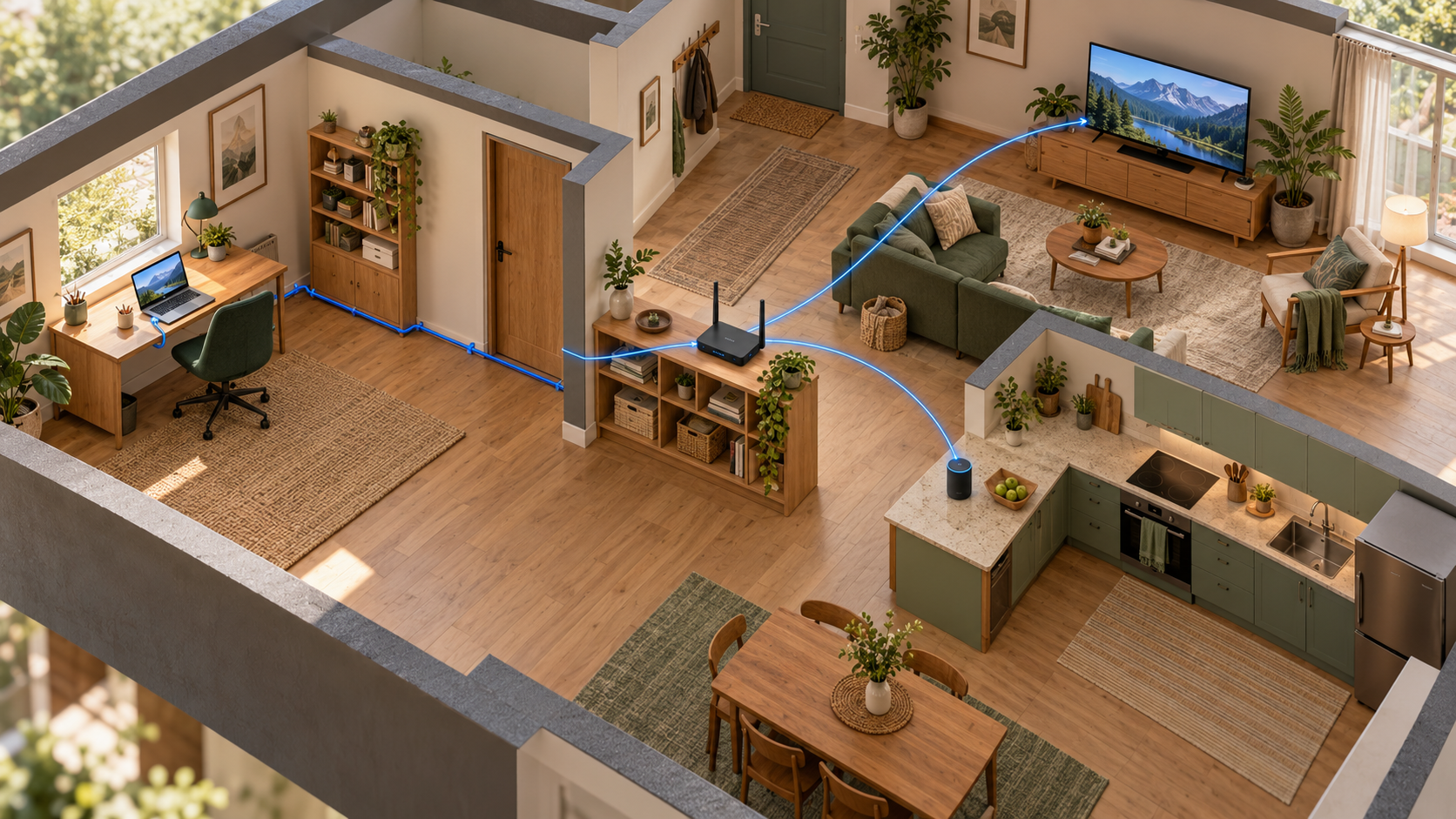
Sketch the rooms and mark where connections are actually used: work desk, television, study area, and fixed devices. An engineering drawing is unnecessary. You need to see how the service entry point relates to the places where people use it.
Beside each location, record the main task: meetings, studying, viewing content, or connecting a household device. Note concurrent use elsewhere and any task that matters at a particular time. Grouping everything under “internet” hides different expectations of success.
Do not invent numerical coverage circles. Obstacles, placement, and equipment make actual checks important. This map identifies where to test; it does not establish identical performance at every point.
Understand the equipment already present
Microsoft's wireless-network setup guidance explains the roles of provider connection, router, and network adapter, noting that some equipment combines functions. Use that distinction to record actual models rather than assuming every small box performs the same job.
Note which equipment belongs to the provider, which belongs to you, and who supports it. Changing a provider device may be outside your authority or service arrangements. Ask before replacing it, and do not disconnect unfamiliar equipment simply to try a new purchase.
Separate delivery of the service to the home from distribution within it. A question about the provider's package differs from one about reaching a distant desk. This planning distinction directs questions to the right party; it does not diagnose a particular slowdown without evidence.
Inventory devices and their connection options
Give each device a recognizable name and record its location, whether it moves, and its documented connection options. Check ports and compatibility rather than buying a cable or adapter because it looks suitable. Confirm accessory compatibility with the device and system before paying.
A wired connection may suit a fixed device where it can be installed safely; movement may make Wi-Fi appropriate elsewhere. This article does not declare either universally better. The choice depends on task, placement, installation feasibility, and testing.
Do not route a cable through a walkway where it creates a trip hazard or perform work inside walls or near electrical installations without qualified help. Mark a possible route and ask about suitable installation. A useful plan includes practical safety, not just device positions.
Define guest and shared-device needs
Write down whether visitors need internet access only or also a printer or another shared device. If equipment offers a guest network, read its documented limits and isolation behavior. The word “guest” does not establish what a user can access.
Do not put passwords in a plan you intend to send to a seller or post for help. Store access information privately in an appropriate place, separate from the inventory. Choose a recognizable network name without including your address or unnecessary personal details.
If a household member uses an organization-managed computer, follow that organization's connection requirements. Do not alter its protection or connection software to fit a new home plan. Contacting the responsible team can be part of preparation.
Choose a position you can evaluate
Identify a proposed router location consistent with its instructions, considering power, cable access, and required ventilation. Do not choose an enclosed position solely to hide the equipment. Record constraints such as the service entry point or furniture that cannot move.
Start with existing equipment where appropriate and check the selected room tasks before buying an extension. If additional points are needed, ask about compatibility, their connection to the rest of the network, and who will configure them. More boxes are not automatically a solution.
In a fictional home, the office needs a meeting connection while a television operates in another room. Success means the recorded tasks work under the tested conditions, not merely that both devices show a connection icon. A phone tested beside the router does not represent the entire home.
Prepare configuration changes deliberately
Apple's router-settings documentation recommends the manufacturer's configuration interface, preserving existing settings before changes, and attention to protection and updates. These recommendations have a context; they are not instructions to copy every setting into every model.
Before changing anything, identify the authorized administrator and the documented way back to the previous setup. Choose a suitable time and warn other users that connectivity may be affected. Do not change several unfamiliar settings and then guess which caused the result.
Use the modern protection supported and recommended for your equipment while checking device compatibility. Do not leave the network open without a password to get around setup trouble. If an older device conflicts with appropriate protection, seek a documented solution instead of weakening the whole network for a quick experiment.
Create a room-based acceptance checklist
| Location | Device and task | Observation | Result |
|---|---|---|---|
| Fictional office | Computer and authorized test meeting | Complete the task at the work position | Worked or needs follow-up, with description |
| Living room | Television and test content | Start and continue playback during the trial | Date and test conditions |
| Study area | Tablet and learning material | Access the required material | What was and was not checked |
| Guest use | A test device you own | Permitted access under documented settings | Limits actually verified |
Check relevant simultaneous use without disrupting other people's work or consuming data unnecessarily. Record device, time, and task; do not turn one observation into a permanent guarantee. Keep unresolved points as specific follow-up items rather than applying a broad success label.
Buy for the identified gap
If planning reveals a need, turn it into purchasing questions: what compatibility is required, where will the item go, how will it connect, what support is announced, and how can suitability be assessed under the seller's terms? This guide does not compare current products or prices.
Separate equipment cost from accessories, installation, and potential support. A plan may require a cable, adapter, or configuration time absent from the box price. Record the expected total and uncertain items instead of omitting them because they have not yet been priced.
Leave a maintainable handover
Keep device names, models, locations, manual links, and maintenance responsibility without login secrets. Record the setup date, changes made, and test results. This helps when adding a device or moving a task into another room.
Review the plan when use changes or new devices arrive. A newer product does not automatically require rebuilding the network, but you should know your equipment's support status and update route. Successful planning serves your tasks within understood limits and remains maintainable.
Sources and transparency
The linked Microsoft and Apple documentation was read on 1 November 2026. The usage map, scenario, and checklist are original, not an engineering survey or measured performance test. The generated cutaway illustration does not depict measured coverage. This article was prepared with AI assistance and has not received independent human editorial review.