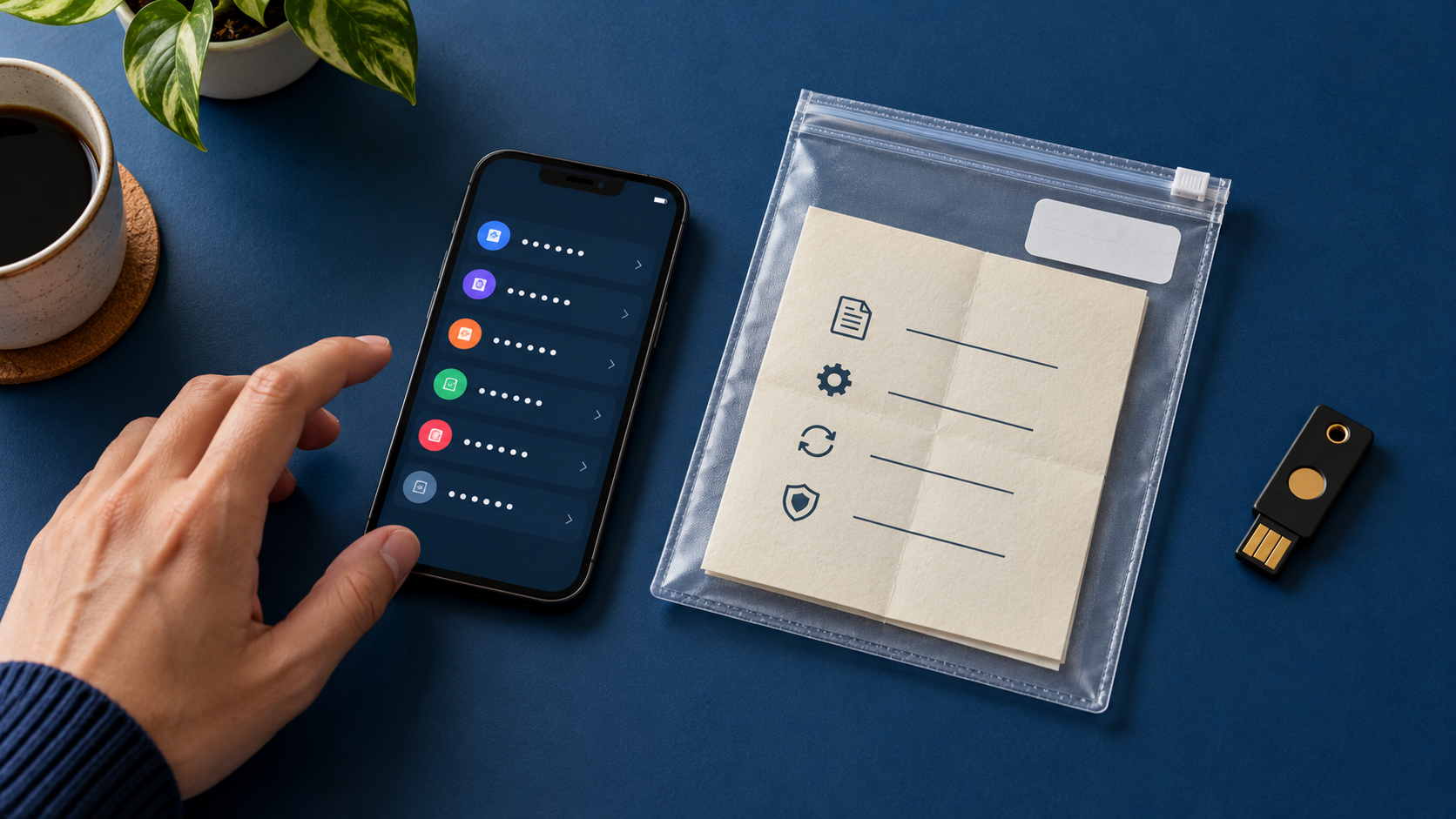
Installing a password manager is the easy part. Getting useful results means knowing how you will unlock it, distinguish similar accounts and regain access if your main device disappears. Moving an untidy list into a new application does not automatically solve those problems.
This guide offers a practical starting process: define your needs, create an inventory without exposing secrets, try one account, then expand gradually. It does not rank commercial products or claim to have tested their security. Never send this website, an author or a stranger your password, vault contents or recovery codes.
What a password manager does—and what it cannot promise
NIST's consumer account-security guidance describes password managers as tools for generating and storing long, distinct passwords. It recommends protecting access to the manager with multifactor authentication. It also explains why a complicated password cannot stop phishing if someone gives it to an impostor site. Treat a manager as one part of your security practices, not a guarantee.
The Canadian Centre for Cyber Security discusses vendor selection, vault protection, updates, password reuse and planning for recovery when a computer fails. Features and risks differ across products. This article does not assume every standalone application is always safer than every browser's built-in manager.
The following tables, scenarios and organizational workflow are original editorial examples based on those broad principles. They are not findings from an independent security audit or a hands-on product comparison.
Inventory your accounts without collecting their secrets
Make a list of service names, known sign-in addresses and the email address or username associated with each account. Do not put passwords, recovery answers or authentication codes in this planning sheet. Its job is to identify the work, not become an unprotected copy of your vault.
Mark each account as regularly used, rarely used, managed by an employer or uncertain. Do not move an employer's credentials into a personal tool without checking organizational policy. If you discover an account you no longer recognize, record a verification task and use the service's official route rather than trusting an old message solely because it is in your inbox.
| Field | Useful entry | Keep out of this sheet |
|---|---|---|
| Service | A learning platform you use | The sign-in password |
| Account identity | Personal email or known username | Secret recovery answers |
| Responsibility | Personal or organization-managed | Another person's credentials |
| Progress | Not moved, needs verification, sign-in checked | Temporary authentication codes |
Compare tools against your actual needs
Start with the devices and browsers you really use. Check the vendor's current documentation for support on each one. A broad claim about working everywhere is less useful than knowing whether the particular app, browser extension and subscription tier provide the function you need.
Ask how you would access the vault without your main device, which authentication options are supported and what export or import can transfer. Read the recovery instructions before choosing. Individual, family and organization accounts may have different arrangements. Write “unclear” next to any unanswered question instead of filling the gap with an assumption.
Only then compare prices and plan limits. If you never share accounts, extensive sharing features are not automatically a reason to buy a more expensive plan. If sharing is essential, understand how access is granted and withdrawn. Do not treat handing out the main vault password as an ordinary substitute for an appropriately designed sharing feature.
Plan access before moving important accounts
Read the selected tool's official setup and recovery instructions. Identify what you must remember and which recovery materials should be stored safely, independently of the single device you might lose. Never copy a published example as your real main password or send it to someone offering to test its strength.
Write a non-secret description of your plan: where instructions are kept, which alternative device could be used and who, if anyone, is authorized to help. Do not put the actual recovery codes in that description. Follow the product's guidance for storing sensitive recovery material with restricted access. A shared photo album or a publicly accessible folder does not meet that purpose.
Before closing your only working session, understand how you would return. Do not simulate an emergency by deleting your sole authentication method. A useful check follows the vendor's safe procedure; it does not create a genuine lockout merely to prove that recovery might work.
Move one account first
Choose a limited trial
Begin with a low-sensitivity personal account you can already access and whose recovery arrangements you understand. Open its known address and confirm the account identity. Give the vault entry a clear service and account name, then review the stored address. Clear naming matters when you have more than one account on the same platform.
Separate saving from testing
Follow the tool's and service's instructions to check that the saved details actually work. A “saved” message does not establish that you chose the intended account or that the service accepted a password change. If something fails, record the point at which it stopped and resolve that before repeating the process across a large collection.
Expand in small groups
After a successful trial, choose a manageable group of similar accounts. Track “saved” and “sign-in checked” separately. An entry appearing in a vault is not evidence that you have successfully used it. Keep unresolved items visible so that a partially completed migration does not appear finished.
A fictional example: two accounts with the same name
Imagine someone with a personal and a study account on one learning platform. They name both entries after the platform alone. On a later visit, they choose the wrong identity and think the password manager has failed. The actual problem is ambiguous organization.
They rename the entries to distinguish the purpose and email, and review the address attached to each one. Their progress note says “personal account checked; study account requires institution-policy review.” They do not copy credentials between the accounts or assume that rules for personal use also govern institutional access.
This is an invented organizational example, not a customer testimonial. Its lesson is practical: a vault cannot supply context you never recorded, and convenient filling should not turn every unexpected sign-in prompt into an automatic decision to proceed.
Handle exports and imports deliberately
Bulk transfer can be helpful, but first understand the file format and contents. Read the product documentation to learn whether its export is encrypted or readable, where it will be saved and how the vendor recommends protecting it after transfer. A file leaving a protected application does not necessarily retain the application's protections.
Where supported, try a small sample and compare account names, addresses, notes and any extra fields you need. Do not delete apparent duplicates in bulk before comparing them. One may be a different identity or contain information missing from the new entry.
Do not upload an export to an unfamiliar file-conversion website to fix formatting. Use official support or an approved transfer method. After confirming the result, handle the temporary file according to the product documentation and your environment. This guide does not provide storage-erasure instructions or promise that ordinary deletion makes a file unrecoverable.
A short completion checklist
- Can I identify the official tool and where I obtained it?
- Do I understand vault access and recovery?
- Have I checked a limited account before a large migration?
- Does each entry have a clear identity and service address?
- Have I separated personal accounts from work-managed ones?
- Do I know where any temporary exports ended up and how they are protected?
- Have I recorded what remains untested?
Revisit the checklist when changing a phone, computer or manager. There is no need to redo unchanged work, but a device change is a useful moment to see whether your recovery plan and contact information still match reality.
Common questions
Can I stop paying attention to sign-in pages?
No. Consult the tool's explanation of how filling relates to a site's address and investigate unexpected requests. A familiar logo or a security symbol alone is not enough to establish who is asking for your credentials.
Must I buy a subscription immediately?
This guide makes no purchase recommendation. Compare your requirements with the specific plan's official terms, then assess usability and recovery. Price alone does not establish the quality of security, and no technical audit of a product is claimed here.
What if I cannot understand recovery instructions?
Resolve that before moving important accounts. Ask official support a focused question without sharing the main password or secret codes. Describe the step and error after removing sensitive details; do not send the contents of your vault as proof.
Sources, illustration and editorial status
The two linked primary sources support the general security principles. The workflow, inventory and fictional example are original explanatory material. The generated illustration shows an abstract phone vault, recovery materials and a security key; it is not a real product interface or a photograph of someone's credentials. This AI-assisted edition has not received independent human editorial review.